






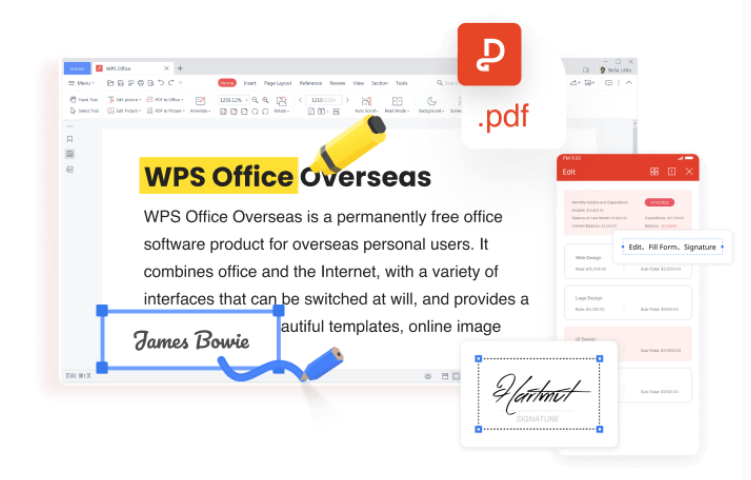
In the fast-paced digital era, effective document management is crucial for individuals and businesses alike. WPS PDF Editor emerges as a robust solution, offering a myriad of powerful features to streamline your document workflows and enhance productivity. This guide explores the key functionalities that make WPS PDF Editor a standout choice in the realm of document management.
WPS Office Key Features
Complimentary Access: WPS Office distinguishes itself by offering an array of robust tools without any associated costs. Users have the ability to generate and modify documents, spreadsheets, and presentations without requiring a subscription.
-
WPS Writer Functionality:
Serving as the word processing element within the suite, WPS Writer presents a user-friendly interface reminiscent of other widely-used word processors. . It provides a feature-rich environment for drafting, editing, and formatting text documents. Users can take advantage of a variety of templates for different document types, making it suitable for tasks ranging from writing reports to creating resumes. WPS Writer supports a wide range of file formats, ensuring compatibility with documents from other popular word processors. With advanced formatting options, collaboration tools, and a distraction-free mode, WPS Writer is designed to enhance your document creation experience.
This familiarity facilitates the creation of polished and professional-looking documents. Noteworthy features encompass document encryption, collaborative tools, and an integrated PDF converter.
-
WPS Spreadsheets:
WPS Spreadsheets provides a feature-rich environment for handling data and calculations. It supports a wide range of functions, formulas, and chart types, making it suitable for both basic and complex spreadsheet tasks. offering a comprehensive solution for data analysis and management. Whether you’re working on complex financial models or simple budgets, WPS Spreadsheet provides a user-friendly interface with powerful features. Users can leverage a variety of functions, formulas, and charts to analyze and visualize data effectively. With support for multiple sheets and collaboration features, WPS Spreadsheet ensures that managing and analyzing data is not just efficient but also collaborative.
-
WPS Presentation:
WPS Presentation is the suite’s tool for creating visually appealing slideshows. It comes with a variety of templates and multimedia integration options, enabling users to craft engaging presentations for various purposes. With a user-friendly interface, a rich selection of templates, and powerful design tools, WPS Presentation makes it easy to bring your ideas to life. Whether you’re preparing a business pitch or an academic presentation, this component offers a plethora of customization options, including slide transitions, animations, and multimedia integration. Collaboration is also made seamless with real-time editing and commenting features, ensuring that your presentations are not just informative but engaging.
- WPS PDF Editor
WPS PDF Editor stands out as a comprehensive solution for those seeking seamless document management. With its user-friendly interface, powerful editing capabilities, and innovative features like JPG to PDF conversion, the software empowers users to take control of their PDF workflows and elevate their document management experience to new heights.
Advantages Of WPS PDF
Intuitive User Interface:
WPS PDF Editor welcomes users with an intuitive interface designed for simplicity and efficiency. Navigating through the software is a breeze, allowing both novices and experienced users to harness its capabilities effortlessly.
Seamless JPG to PDF Conversion:
One standout feature of WPS PDF Editor is its prowess in converting JPG files to PDF seamlessly. With just a few clicks, users can transform image files into professional-looking PDF documents, preserving the quality and layout of the original content.
Advanced Editing Tools:
Beyond conversion, WPS PDF Editor provides a comprehensive set of editing tools. Users can add, delete, or rearrange pages, annotate PDFs, and modify text and images with precision. The software ensures that your documents reflect your intended message accurately.
Cross-Platform Compatibility:
WPS PDF Editor streamlines document management through its cross-platform compatibility. Regardless of whether you are operating on Windows, macOS, Linux, Android, or iOS, the software guarantees a uniform user experience across diverse devices. This adaptability caters to the varied requirements of users within different technological ecosystems.
Secure and Collaborative Workflows:
WPS PDF Editor prioritizes document security and collaboration. Users can encrypt PDFs, add password protection, and apply digital signatures to ensure the integrity and confidentiality of their files. The collaborative features facilitate seamless teamwork, allowing multiple users to review and comment on documents in real-time.
Cloud Integration for Accessibility:
Embracing the modern trend of cloud computing, WPS PDF Editor integrates seamlessly with popular cloud storage services. This enables users to access and manage their PDFs from anywhere, fostering a more flexible and mobile-friendly document management experience.
Preserving Image Quality:
WPS PDF Editor takes pride in maintaining the integrity of the original image during the conversion process. Whether you’re dealing with high-resolution photographs or intricate graphics, the software ensures that the resulting PDF faithfully retains the clarity and detail of the original JPEG file. This commitment to preserving image quality sets WPS PDF Editor apart from other tools in the market.
Customization Options:
Beyond the basic conversion, WPS PDF Editor offers a range of customization options to meet the unique needs of users. From adjusting the layout and orientation to adding watermarks or annotations, the software empowers users to tailor their PDF documents according to specific requirements. This level of flexibility is particularly beneficial for professionals and creatives seeking a comprehensive PDF editing solution.


Time-Efficient Batch Processing:
For users dealing with a large volume of JPG files, WPS PDF Editor offers a time-efficient batch processing feature. This capability allows users to convert multiple images into PDF format simultaneously, saving valuable time and streamlining workflows. The batch processing feature exemplifies WPS PDF Editor’s commitment to enhancing efficiency for its users.
How To Use WPS PDF Editor
WPS PDF Editor to make the most of its features and enhance your PDF editing experience.
- getting started: installation and setup
Before diving into the world of PDF editing with WPS, ensure you have the software installed on your computer. You can download and install WPS PDF Editor from the official website. Once installed, launch the application to begin your PDF editing journey.
- opening PDF documents
To start editing a PDF, click on the “Open” button within the WPS PDF Editor interface. Select the PDF file you want to edit from your computer, and it will open within the application.
- basic editing tools
PDF Editor offers a range of basic editing tools to modify your PDF document. Here are some essential functions:
- Text Editing: Click on the “Edit” button to modify text within the PDF. You can add, delete, or modify existing text with ease.
- Image Editing: Insert or replace images by selecting the “Image” option. This is particularly useful for adding logos, graphics, or updating images within your PDF.
- Page Management: Rearrange, insert, or delete pages as needed. Navigate to the “Pages” tab to access these functions.
- conversion to other formats
Convert your PDF documents to other formats seamlessly. Navigate to the “Convert” tab to choose the desired output format, whether it’s Word, Excel, PowerPoint, or other popular file types.
- form filling and signature integration
WPS PDF Editor simplifies form filling and signature placement. Access the “Form” tab to fill out interactive forms, and utilize the “Sign” option to add your signature or initials electronically.
- security and protection
Enhance the security of your PDF documents by encrypting them with passwords or setting permissions. Access the “Protect” tab to explore options for securing your sensitive information.
- OCR (Optical Character Recognition)
If your PDF contains scanned images or non-editable text, use the OCR feature to convert it into editable and searchable text. WPS PDF Editor is known for its accuracy in convert JPG to PDF. The tool maintains the integrity of the original image, delivering high-quality and reliable results. This can be found under the “Convert” tab.
- save and export options
Once you’ve made your edits, click on the “Save” button to save your changes. Additionally, use the “Export” option to save the edited document in various formats or share it with others.
- updates and support
Stay updated with the latest features and improvements by checking for updates within the software. Additionally, explore the online support resources provided by WPS for troubleshooting or to find answers to common queries.
Conclusion:
In the realm of PDF editing, WPS PDF Editor emerges as a standout performer, excelling at the conversion of JPG to PDF. With its user-friendly interface, commitment to preserving image quality, extensive customization options, multi-platform compatibility, and efficient batch processing, WPS PDF Editor proves to be a valuable tool for individuals and professionals alike. Whether you’re a student compiling research, a photographer showcasing a portfolio, or a business professional streamlining document workflows, WPS PDF Editor provides a reliable solution for transforming images into polished and professional PDF documents.