




Transitioning to digital cellular technology has revolutionized how international travelers stay connected across the globe. Embedded SIM profiles eliminate the hassle of physical SIM cards, long airport queues, and unexpected roaming fees. However, experiencing technical glitches or installation errors during setup can cause temporary panic, especially when arriving in an unfamiliar destination without active internet access.
Understanding the common causes behind installation failures and connection issues empowers travelers to resolve technical hiccups swiftly. Most digital cellular configuration problems stem from simple settings oversights or network registration delays rather than permanent hardware faults. This troubleshooting guide details the most frequent setup errors and provides practical solutions to restore your mobile internet connection within minutes.
1. Error Message: “Unable to Add eSIM” or “QR Code Invalid”
One of the most frustrating errors occurs during initial profile installation when your smartphone camera scans the setup QR code. Your screen may display error messages indicating that the code is invalid, expired, or unable to be added to your cellular account settings.
This issue typically arises when trying to scan the QR code through your smartphone camera app directly rather than opening the cellular settings menu. Alternatively, scanning a digital profile that has already been activated or attempting setup without an active internet connection will trigger this installation failure.

Common Travel eSIM Setup Errors and How to Fix Them Quickly
To resolve this issue, connect your smartphone to a stable home or airport Wi-Fi network before initiating the installation process. Navigate directly to your device cellular settings, choose the option to add a cellular plan, and scan the QR code within that specific interface.
2. Device Connected to Local Network But No Internet Data Access
Arriving at your destination airport and seeing local network signal bars without active internet access is another common setup scenario. Your smartphone attaches successfully to local cell towers, but web pages fail to load and messaging applications remain completely offline.
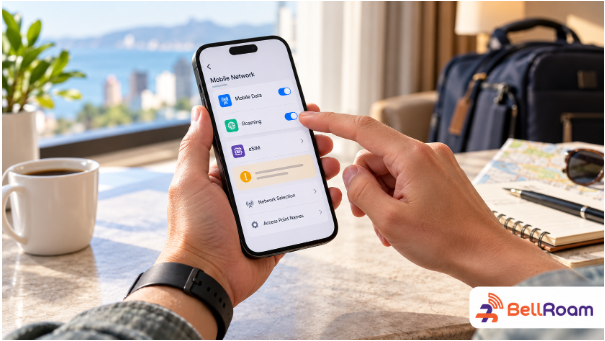
This problem usually occurs because the required data roaming option remains toggled off specifically for your newly installed travel line. Without enabling data roaming on the travel profile, local partner telecommunications networks block your mobile device from transmitting cellular data.
Open your cellular settings menu, select your travel data profile, and ensure the data roaming switch is toggled to the active position. Additionally, verify that your smartphone’s primary default line for cellular data is explicitly set to your travel profile rather than your home carrier.
3. Smartphone Locked to Primary Domestic Carrier Network
Attempting to install a secondary international digital profile on a carrier-locked smartphone will result in immediate system rejection. Mobile operators frequently lock leased or financed smartphones to prevent third-party cellular profiles from registering on foreign networks.
If your device is carrier-locked, your smartphone settings will prevent adding new cellular plans or display security restriction notices during setup. Utilizing international cellular data plans requires a completely carrier-unlocked device capable of accepting global network configurations.
Before purchasing an international data package from providers like BellRoam, verify your device lock status within your phone settings menu. If your device is locked, contact your primary domestic carrier to request an official network unlock prior to taking off on your trip.
4. Incorrect APN Settings Preventing Data Traffic Flow
Access Point Name (APN) settings act as the digital gateway connecting your mobile device hardware to local cellular network infrastructure. While most digital profiles configure APN settings automatically upon network connection, temporary system bugs can leave these fields blank or misconfigured.
When APN settings fail to populate correctly, your device may show strong signal bars while remaining completely unable to route internet traffic. This operational breakdown prevents web browsers, mapping apps, and email services from establishing server connections abroad.
To fix misconfigured APN settings manually, open your travel profile details within cellular settings and locate the APN configuration field. Check your profile installation instructions for the exact APN text string and manually enter it into the designated field before restarting your device.
5. Delayed Network Registration Upon Arrival at Overseas Destination
Landing in a new country and finding your smartphone searching endlessly for network signals can cause unnecessary travel anxiety. International network registration relies on handshake protocols between your digital profile and local roaming partners, which occasionally takes several minutes.
Switching flight mode on and off rapidly or constantly altering device settings can disrupt this initial registration process. Heavy network traffic at busy international arrival terminals can also prolong signal search times for newly arriving foreign devices.
Exercise patience upon landing by keeping your device powered on with data roaming enabled for five to ten minutes. If signal connection remains elusive, toggle airplane mode on for ten seconds, turn it off, or perform a full device restart to force network registration.
Conclusion
Encountering setup errors with your travel digital SIM can be inconvenient, but almost all installation issues are easily fixable. By confirming device unlock status, enabling data roaming, checking APN fields, and maintaining stable Wi-Fi during installation, you can resolve technical glitches effortlessly.
Equip yourself with these simple troubleshooting steps to navigate international destinations with complete confidence and reliable internet access. Prepare your mobile device before taking off and enjoy seamless, high-speed global connectivity wherever your journey takes you!
Company Information / Contact Details
- Brand Name: BellRoam
- Website: https://bellroam.com/
- Address: Unit 308, 3/F, Chevalier House, 45-51 Chatham Road South, Tsim Sha Tsui, Hong Kong
- Phone: +44 7862 604379
- Email: support@bellroam.com